 Nirama
Documentation → FastPoker
FastPoker documentation
Planning poker for Jira Cloud: pick an issue from your real backlog, everyone votes in secret, reveal together — and the number the team agrees on is written to your Jira estimate field.
Applies to all released versions · Last updated 17 August 2026 · Questions? Contact support
Where to find FastPoker
FastPoker adds two surfaces:
- FastPoker in a project's navigation — the room where a session runs. This is where the facilitator drives the round and where everyone votes during a planning call. If you don't see it, open More in the project nav.
- FastPoker estimate on an individual issue — for estimating one issue without a meeting. On the issue, use the apps button next to the summary and pick FastPoker estimate.
Both work on the same session, so someone in the meeting and someone on an issue are voting in the same round.
Starting a session
- Open FastPoker in the project.
- Choose a deck — Fibonacci, powers of two, T-shirt sizes, or your project's custom deck.
- Pick the first issue from your backlog. The list is searchable, and two filters help you aim: Needs estimate hides issues that already have one, and Hide sub-tasks removes sub-tasks. Issues that already have an estimate show it on the right.
- Click Start session.
One session runs per project at a time, and it works on one issue at a time. Anyone who opens the FastPoker page joins the session automatically — there is nothing to accept or configure. The person who starts the session is its facilitator.
Inviting your team
Invite link copies a URL straight to the running session. Paste it into your call chat: anyone with access to the project who opens it joins and can vote. Teammates already looking at the FastPoker page don't need the link — they join within a few seconds on their own.
Voting
- Click a card. Your choice is hidden from everyone until the round is revealed — the others only see that you have voted, as a tick next to your name.
- You can change your vote as often as you like before the reveal; only your last card counts.
- Two cards never count towards the numbers: ? ("I need more information") and the coffee cup ("I need a break"). They mark you as having voted without skewing the average or the spread.
- The header tracks progress — for example "3 of 5 voted".
Revealing and reading the result
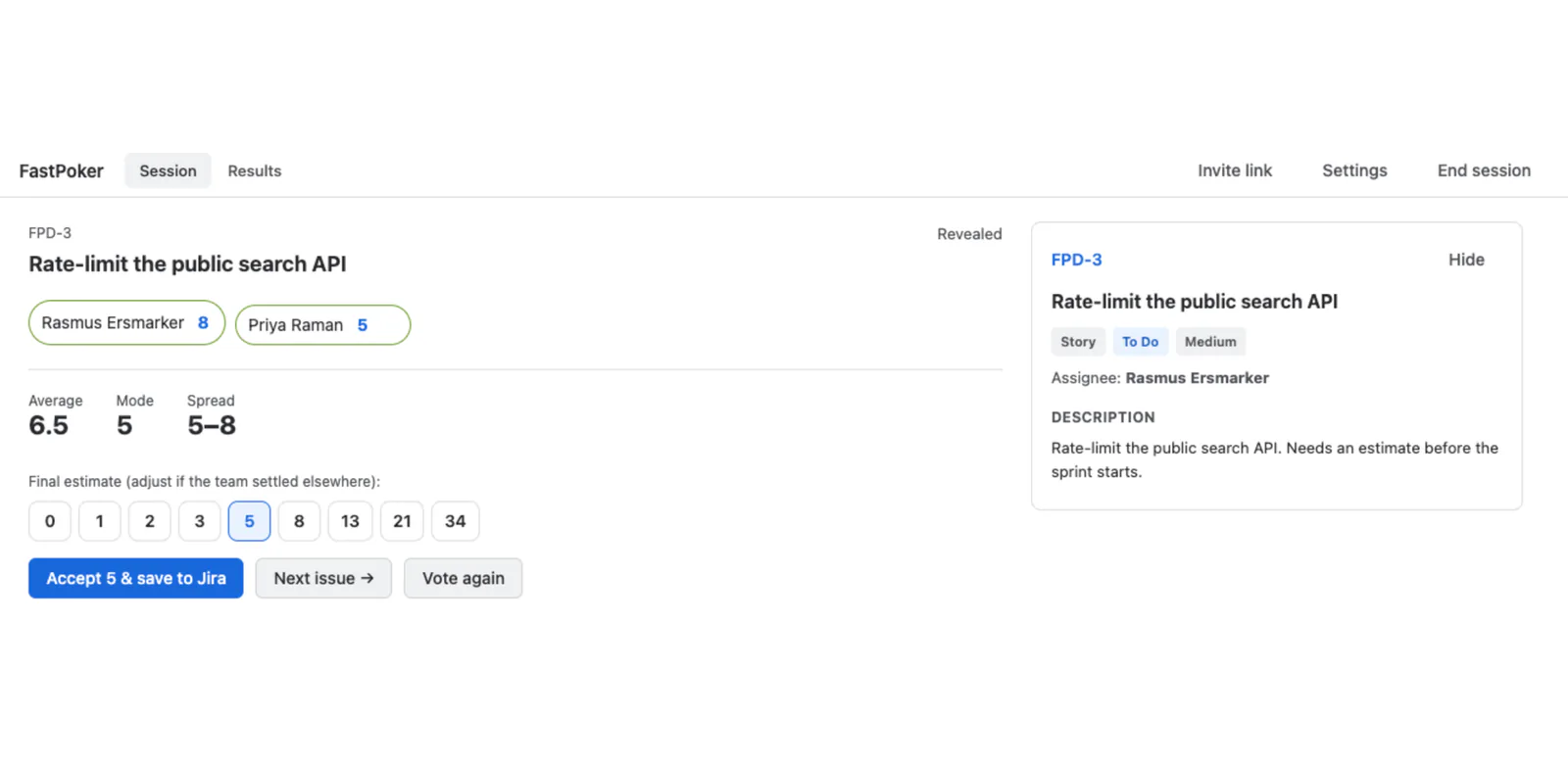
The facilitator clicks Reveal votes. If auto-reveal is enabled in settings, the round reveals itself once everyone in the room has voted.
On reveal you see every person's card, plus three numbers:
- Average — the mean of the numeric votes, to one decimal.
- Mode — the most commonly chosen card.
- Spread — the range, for example 5–13, or the word consensus when everyone picked the same number. The spread is the part worth watching: it makes disagreement visible instead of hiding it inside an average.
Not convinced? Vote again clears the round and reopens voting on the same issue — the usual move after someone explains why they voted 13 and everyone else voted 3.
Accepting an estimate
The facilitator picks the final estimate — it starts on the mode, and you can choose any card from the deck if the team talked its way to a different number. Then click Accept N & save to Jira.
That writes the value to the Jira field chosen in settings (typically Story Points or Story point estimate) and records the round in the session results. If Post a summary comment is enabled, FastPoker also adds a short comment to the issue.
If Jira can't store the estimate
Jira only accepts a field on an issue if the field is enabled for that issue type and present on its screens. FastPoker checks this before anyone votes and says so on the round, rather than failing at the finish line: voting still works and the accepted value is kept in the session results, but the Jira field stays empty. The warning includes the fix — a Jira admin adds the issue type to the field's context and screens, or you point FastPoker at a different field in settings.
Moving through the backlog
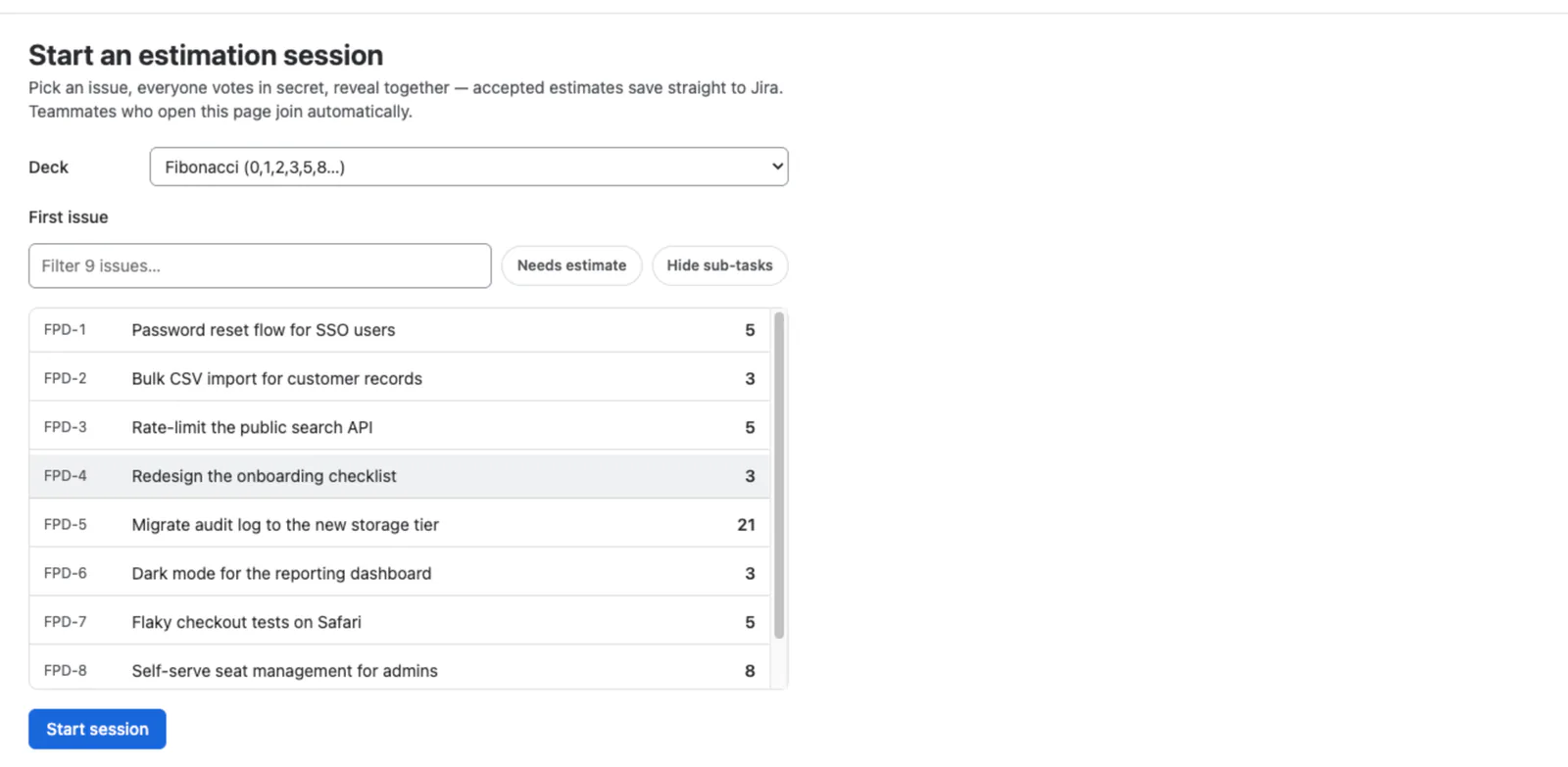
- Next issue (after accepting) and Skip issue (mid-round, without revealing) both open the backlog picker, with the same search and filters as the start screen.
- Remove a participant — the ✕ next to a name. Use it when someone opened the page to watch but isn't voting and auto-reveal is waiting for them. It isn't a ban: they re-join if they interact again, and their votes for the current round are discarded.
- Round timer — set a number of seconds in settings and each round shows a countdown. It's a nudge, not a cut-off: nothing is submitted or revealed automatically when it reaches zero.
- End session closes the room for everyone and shows the summary. The confirmation tells you exactly what was recorded and whether it reached Jira.
Estimating from an issue
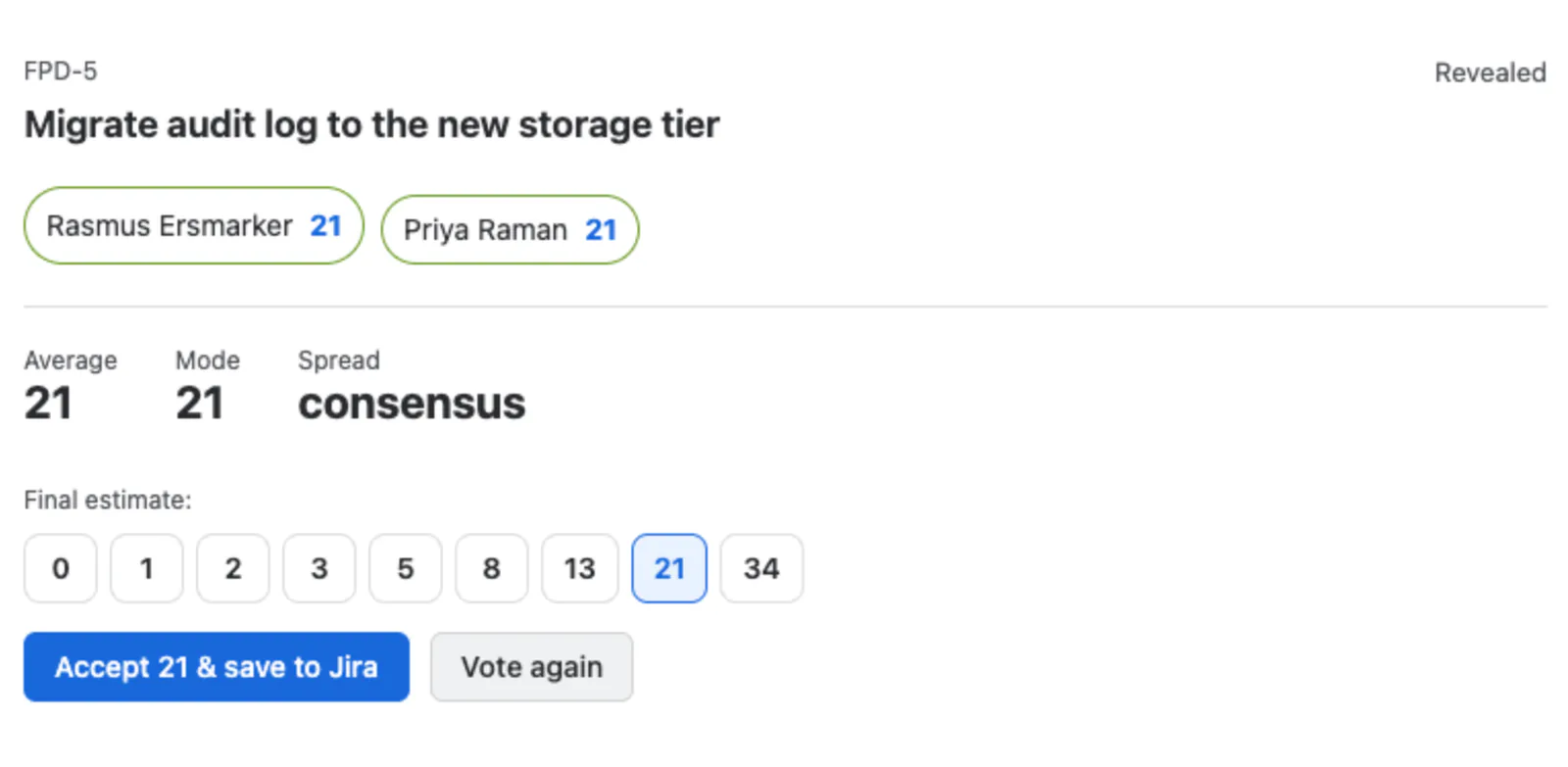
Open FastPoker estimate on an issue to estimate it without a meeting:
- If a session is running on that issue, the panel is that round — vote, see who else has, reveal and accept from here.
- If a session is running on a different issue, the panel says so and offers to switch the round to this one.
- If no session is running, Start estimating opens one seeded with this issue.
This is how asynchronous estimation works in practice: one person opens the issue, the next person does the same an hour later, and the round completes without a call.
Session results and summary
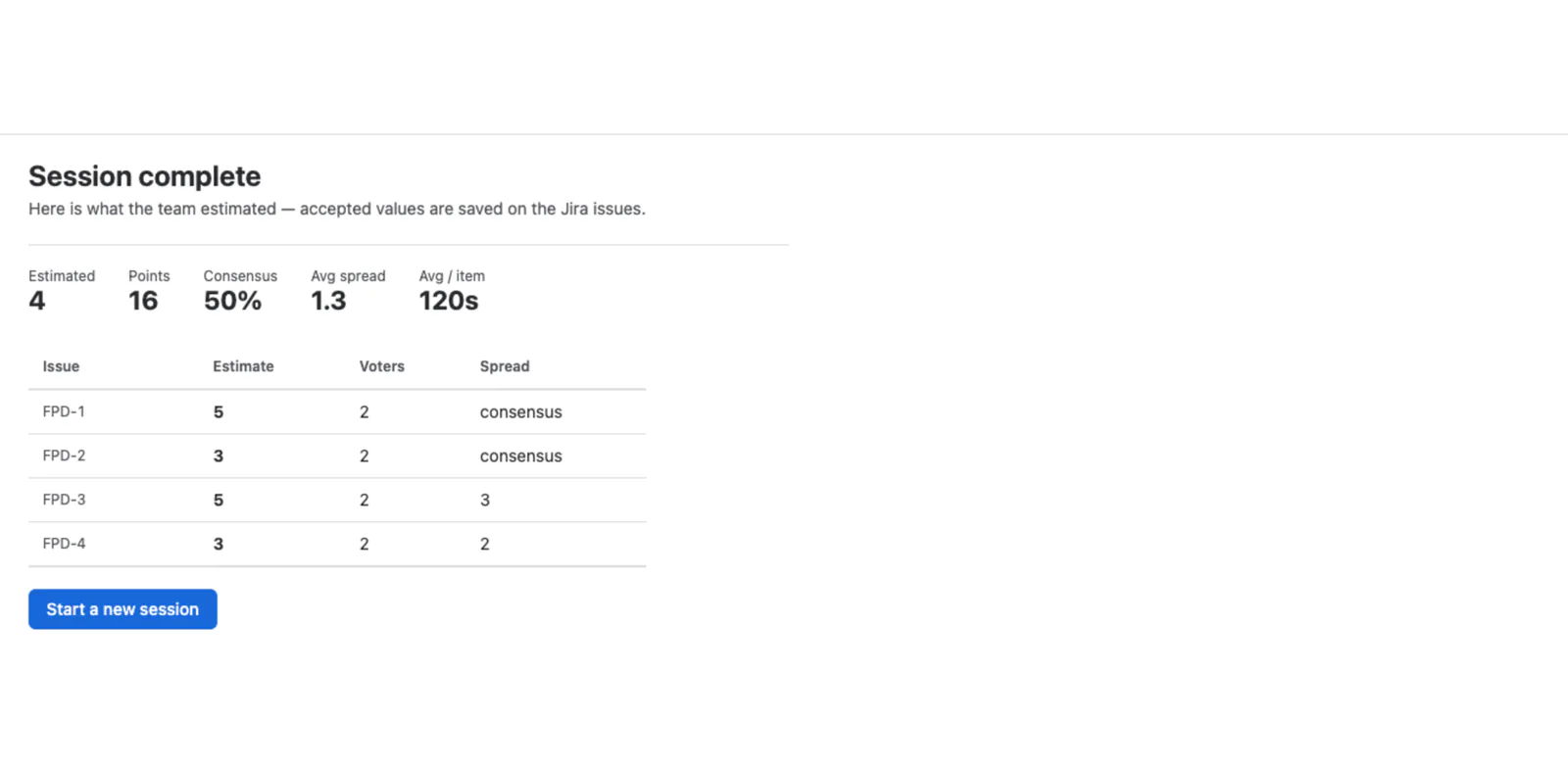
The Results tab lists every accepted estimate in the session — issue, estimate, how many people voted, and the spread (or consensus). An estimate that couldn't reach Jira is marked not saved.
When the session ends, everyone sees a summary: how many issues were estimated, total points, the share of rounds that reached consensus, the average spread, and the average time per item. Useful for a retro question like "why did four of six rounds need a re-vote?".
Project settings
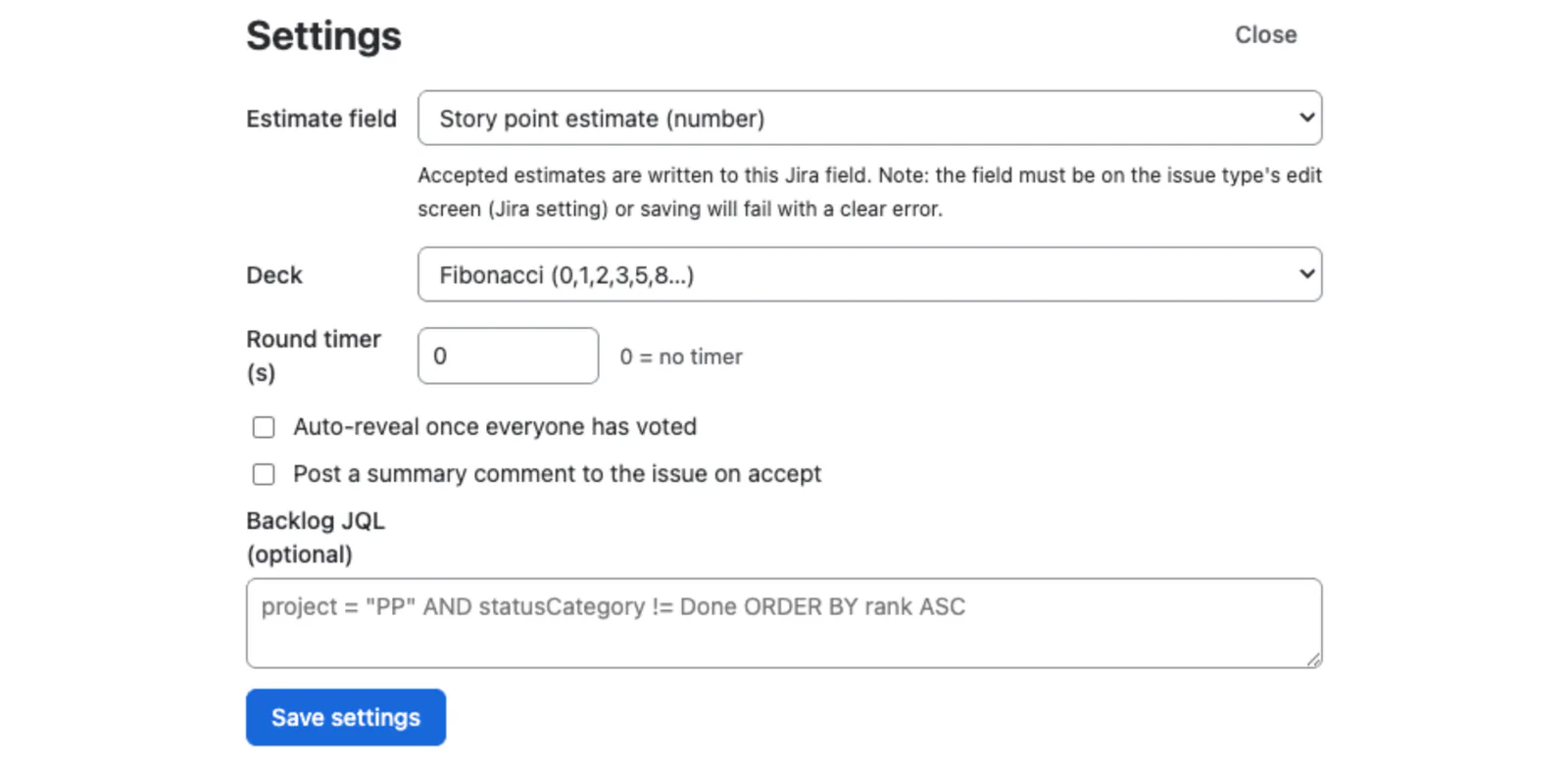
Settings are per project and only project administrators can change them — everyone else runs sessions with them. Open Settings in the FastPoker toolbar.
- Estimate field — where accepted estimates are written: Story Points, Story point estimate, or any other number, text or select field in your Jira. Choose Don't write back to keep estimates in FastPoker only.
- Deck — Fibonacci, powers of two, T-shirt sizes, or a custom list of cards.
- Round timer — seconds per round; 0 means no timer.
- Auto-reveal — reveal as soon as everyone in the room has voted.
- Post a summary comment — add a comment to the issue when an estimate is accepted.
- Backlog JQL — the query behind the issue picker, if you want something other than the project's open issues in rank order.
Different projects can use different fields and decks; nothing is global.
Permissions & your data
- FastPoker runs entirely on Atlassian Forge inside your own tenant. It declares no egress: sessions, votes, results and settings are stored in Forge storage in your site and never sent to us. See our security policy.
- Estimates are written to Jira as you, so an issue you can't edit is an issue FastPoker can't change on your behalf.
- Participant names are read from Jira when the list is drawn — FastPoker stores no names, so a renamed account shows its current name, and joining as someone else is impossible (the account comes from Jira's own request context).
- Votes are withheld from every participant, including the facilitator, until the round is revealed.
- A session expires automatically after 8 hours of inactivity, or when the facilitator ends it. Closing deletes the votes and the participant list; the accepted estimates stay in the session summary. Uninstalling deletes everything.
Troubleshooting
I can't find FastPoker in my project
Look under More in the project navigation — Jira collapses app tabs when the nav is crowded. On an individual issue, use the apps button beside the summary and choose FastPoker estimate.
The round says the estimate can't be stored in Jira
That's a Jira field configuration, not a FastPoker bug — the chosen field isn't available on that issue type. Expand How to fix this on the warning: a Jira admin adds the issue type to the field's context and puts the field on its Edit and Create screens, or a project admin points FastPoker at a field that does exist there. Voting works either way; only the Jira write is affected.
Auto-reveal is waiting for someone who isn't voting
Anyone who opens the page joins the room, including people who are only watching. Either reveal manually, or remove them with the ✕ next to their name.
I voted for the wrong card
Click the card you meant. Until the reveal, only your latest vote counts.
"FastPoker license is inactive"
The app's subscription has lapsed or hasn't started on your site. Existing sessions and results stay readable; starting a session, voting and accepting are paused until a site administrator updates the subscription in Atlassian Administration → Billing.
Something else
Email support@niramasolutions.com with your Jira site URL, the project key, and a screenshot if the UI is involved. We answer within two business days.