 Nirama
Documentation → FastAudit
FastAudit documentation
Custom field audit for Jira Cloud: find the fields nobody uses, see the evidence behind every verdict, and clean them up reversibly — without ever deleting anything permanently.
Applies to all released versions · Last updated 20 August 2026 · Questions? Contact support
Where to find FastAudit
FastAudit is a Jira administration tool, so it lives in Jira's admin settings rather than in a project.
- Open the settings gear in the top-right of Jira and choose Apps.
- In the admin sidebar, under the Apps heading, select FastAudit.
If the sidebar shows a different settings area, use the Switch settings dropdown at the top of it and pick Marketplace apps. Note that Apps in the sidebar is not the same place as Jira's Apps product configuration — FastAudit is under Marketplace apps.
Only users with Jira administrator permission can open FastAudit. That is re-checked on the server for every request, not just when the page loads, so it cannot be bypassed by a stale browser tab.
Running a scan
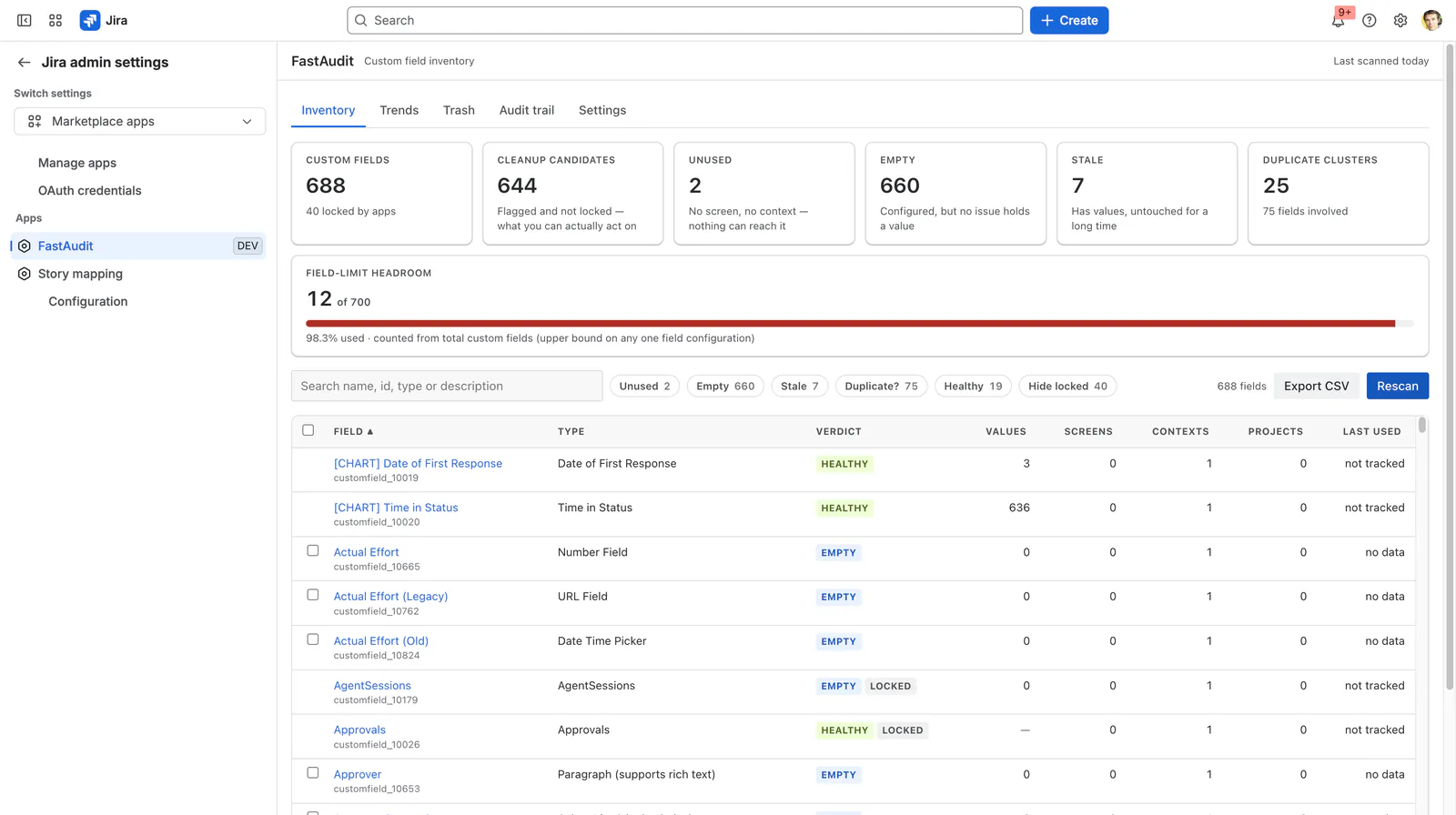
A scan reads your custom field configuration and works out a verdict for every field. Scans only read. Nothing is changed by scanning.
Press Rescan on the Inventory tab. The scan runs in the background, so you can leave the page and come back — the results are stored, and reopening FastAudit shows the last completed scan with a "Last scanned" date in the header.
How long it takes depends on how many fields you have and how many issues Jira has to count. A few hundred fields typically finish in under two minutes. The page shows what it is doing while it works.
A scan also runs automatically once a week, which is what builds the trend line. If you start a scan while one is already running, FastAudit waits for the one in flight rather than starting a second.
The verdicts
Every field gets exactly one verdict, plus a LOCKED marker where it applies.
- UNUSED — nothing can reach this field: it is on no screen and has no context, and no issue holds a value in it. This is the strongest signal that a field is dead configuration.
- EMPTY — the field is configured and reachable, but no issue holds a value in it. Someone set it up and nobody ever filled it in.
- STALE — the field holds values, but Jira's last-used date for it is older than your stale threshold (12 months by default). Stale is not dead: the data is real, it is just not being touched.
- DUPLICATE-SUSPECT — another field has the same type and a near-identical name. See duplicate clusters.
- HEALTHY — none of the above applies. FastAudit will not offer a healthy field for cleanup.
- LOCKED — the field belongs to Jira itself or to another app. FastAudit reports these so your inventory is complete, but it will never change one, and they have no selection checkbox.
The tiles at the top of the Inventory tab count each verdict, and Cleanup candidates counts the fields that are flagged and not locked — that is, the ones you can actually act on. Use the chips beside the search box to filter to a single verdict, and Hide locked to drop the fields you cannot change.
The evidence behind a verdict
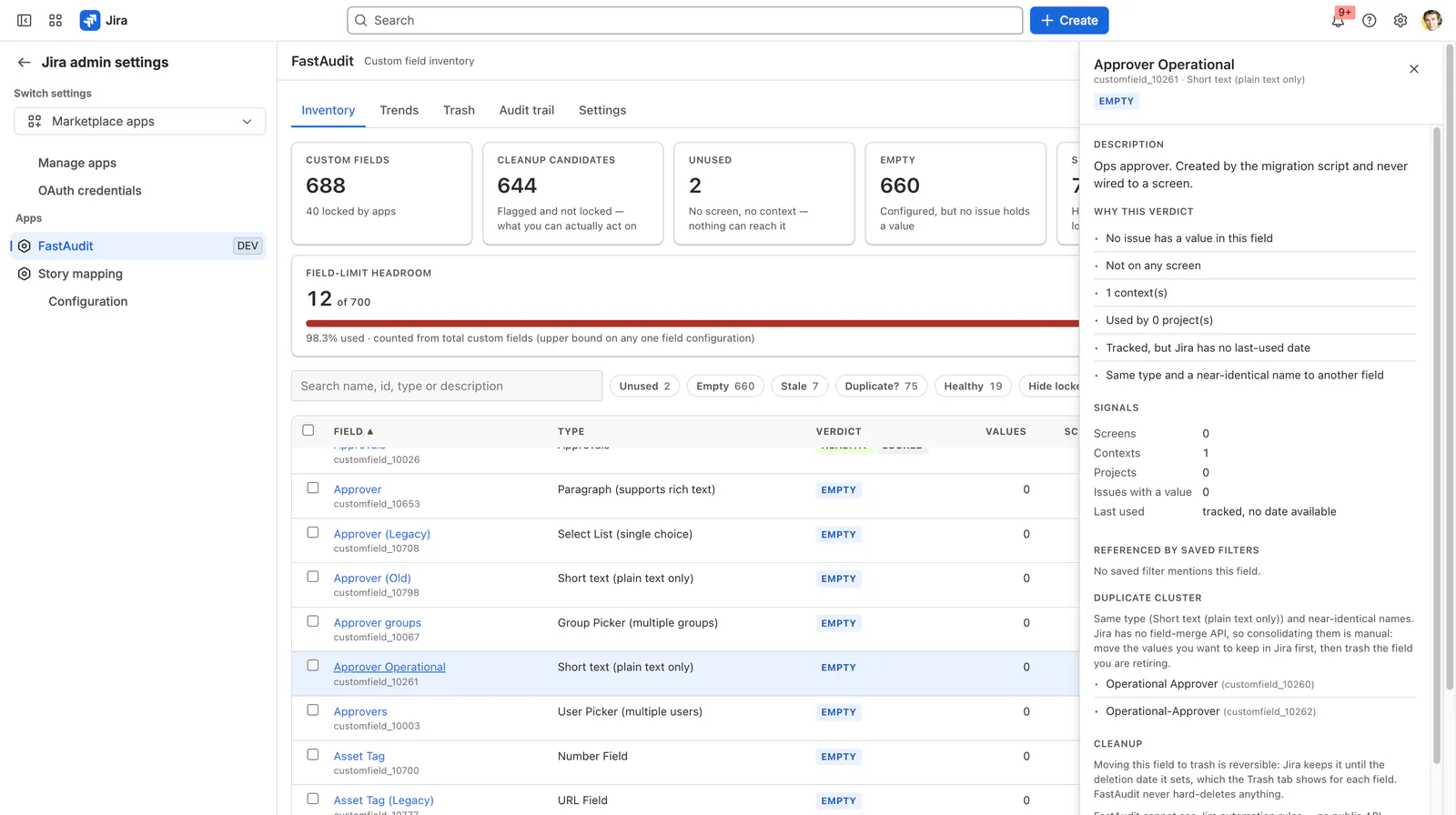
Select any field name to open its evidence panel. A verdict on its own is an opinion; this panel is the reasoning, so you can disagree with it.
- Why this verdict — the specific signals that produced it, in plain sentences.
- Signals — how many screens and contexts the field sits on, how many projects use it, how many issues hold a value, and the last-used date.
- Referenced by saved filters — the filters whose JQL mentions this field, by name. A field referenced by a filter is never called unused, however empty it looks.
- Duplicate cluster — the other fields sharing its type and a near-identical name.
- Cleanup — what would happen if you acted on it.
Two values in the table deserve explanation. Last used: not tracked means Jira does not record a last-used date for that field type at all — it is not a claim that the field is unused. Values: — means the count could not be measured for that field, rather than that the count is zero.
Field-limit headroom
Jira Cloud limits how many custom fields a single field configuration can carry. The Field-limit headroom gauge shows how much of that budget you have left, and turns amber and then red as you approach it.
The gauge counts your total custom fields. That is an upper bound rather than an exact reading: your largest single configuration can only ever be as big as the total, so if the total is comfortable, every configuration is comfortable. If the total is close to the limit, that is your cue to look. You can lower the limit in Settings if you want to be warned earlier.
Fields in the trash do not count towards the gauge.
Duplicate clusters
FastAudit groups fields that share a type and a near-identical name — the "Cost Centre" / "Cost Center" problem that arrives with a migration or a well-meaning second admin.
Sensitivity is a percentage in Settings, 88% by default. That default is tuned to catch "Email" against "E-mail" while leaving "Global Owner" and "Local Owner" alone. Lowering it finds more candidates and more false positives.
FastAudit does not merge fields, because Jira has no API that can. Consolidating a cluster is manual: move the values you want to keep in Jira first, then trash the field you are retiring. The cluster view is there to tell you the duplicates exist and which fields are involved.
Cleaning up
Cleanup has exactly one action: move a field to Jira's trash. There is no delete. FastAudit cannot permanently remove a field, and it never changes the data held in one.
- Filter the inventory to what you want to review — a verdict chip, a search term, or both.
- Tick the fields, or use the header checkbox to select every cleanup candidate currently in view. Locked and healthy fields have no checkbox.
- Choose Review & move to trash.
- Read the review. For every field it lists the values, screens, contexts, projects and filter references it is about to affect, so you can see the blast radius before committing rather than after.
- Confirm.
Large selections are sent to Jira in batches. If a later batch fails, the fields already trashed stay trashed and FastAudit tells you where it stopped — it does not silently roll back or silently continue.
Every action is written to the audit trail before it is reported as done, and each field is re-checked on the server against the last scan. A field the scan judged healthy or locked is refused even if it is submitted directly.
Trash and restore
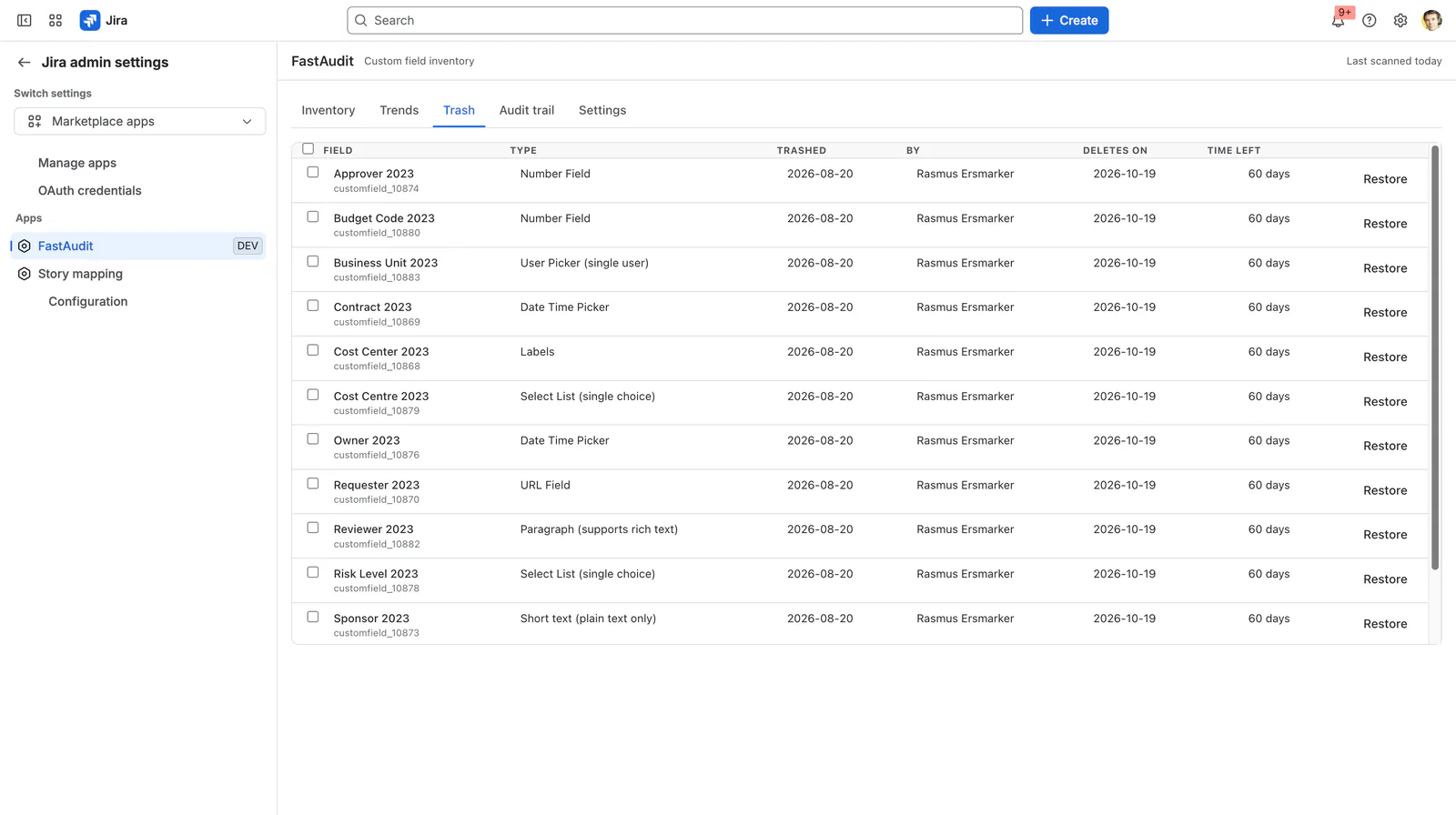
The Trash tab lists every custom field currently in Jira's trash — including fields put there by someone else, or by Jira's own admin screens.
For each field it shows when it was trashed, who trashed it, the deletion date Jira has set, and how long is left. Restore a single field with the button on its row, or tick several and restore them together.
The restore window is Jira's, not FastAudit's, and it is read from Jira rather than assumed — which is why this documentation does not quote a number of days. Check the date on the Trash tab for the fields you care about. Once Jira's deletion date passes, the field is gone and FastAudit cannot bring it back.
Audit trail
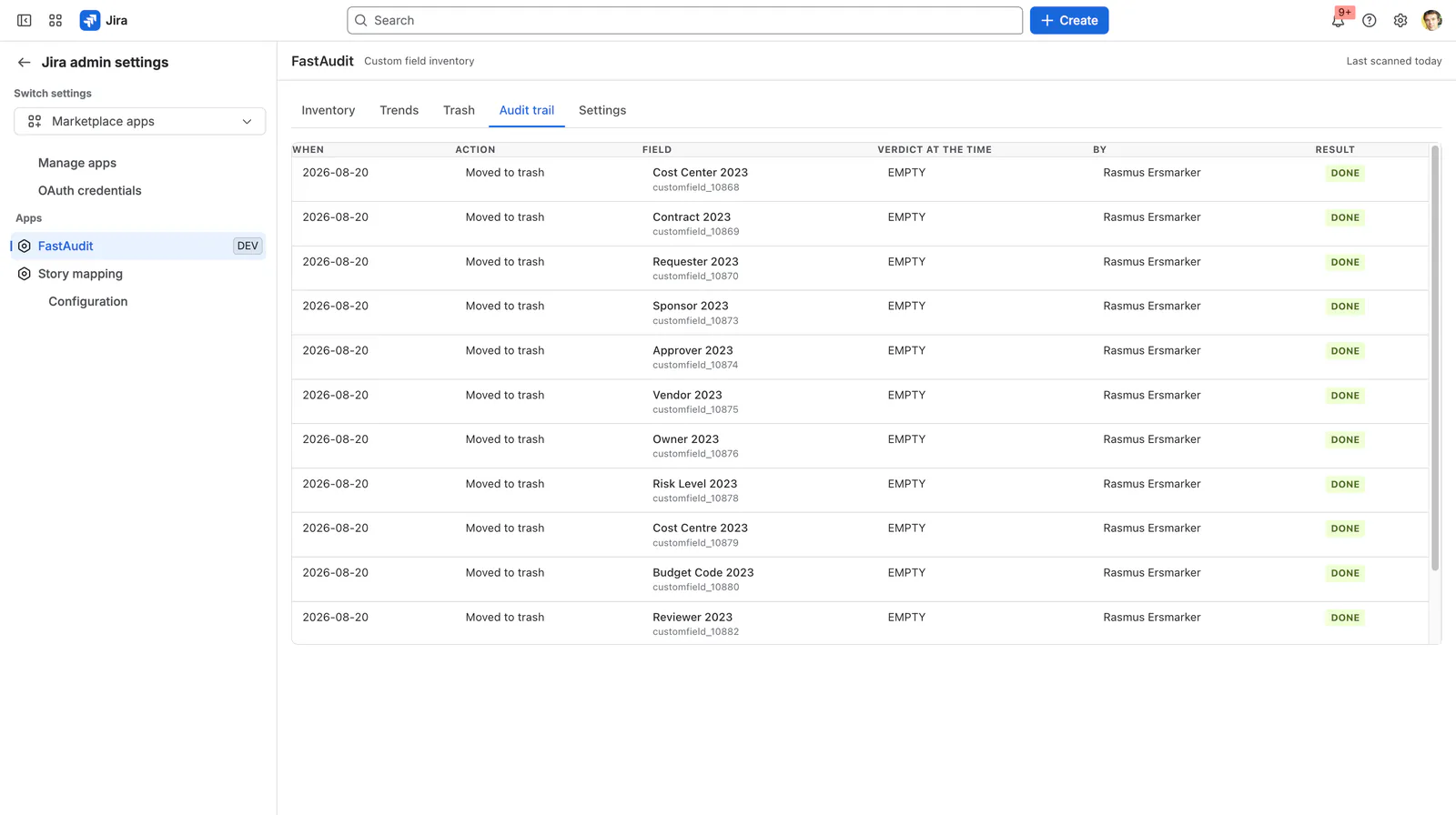
The Audit trail tab records every cleanup action FastAudit performed: what was done, to which field, the verdict the field had at the time, the result, and who did it. It is there for the change request you have to attach afterwards, and for the question "who removed this field?" six months later.
Entries are kept for 90 days and then deleted automatically. FastAudit stores the acting administrator's Atlassian account ID and not their name; names are looked up in Jira when the page is drawn, so a renamed account shows its current name. See our privacy policy.
Trends
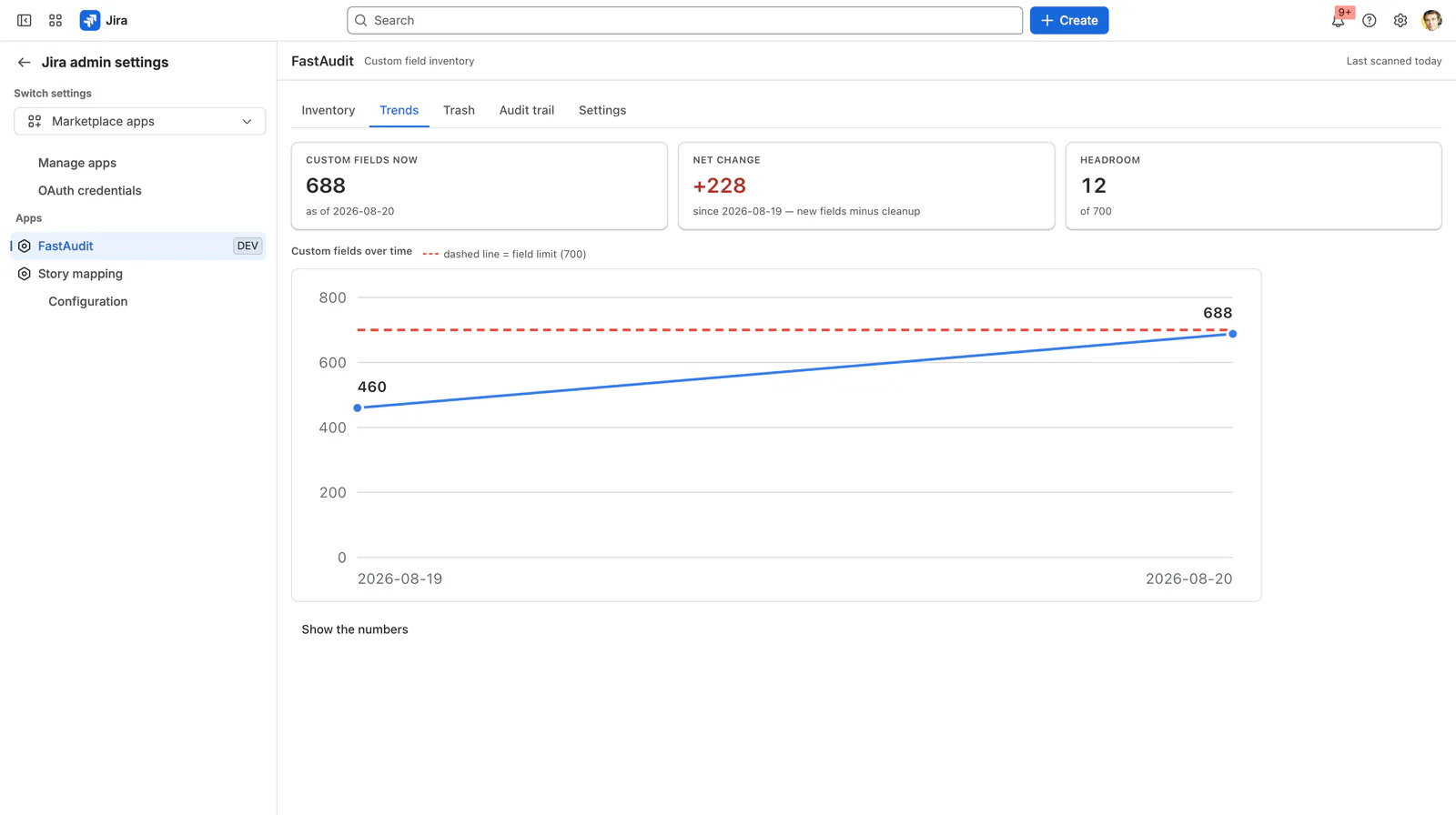
The Trends tab plots your custom field count over time against the limit, from the weekly automatic scan. It answers the question a one-off report cannot: is the sprawl getting better or worse?
Net change is new fields minus cleaned-up fields since the first recorded point — not a count of new fields. A tab with a single point has nothing to draw yet; come back after next week's scan. Use Show the numbers for the underlying table.
Settings
Three thresholds, all site-wide:
- Treat a field as stale after — months, 1 to 60. Default 12. Applies only to fields Jira actually tracks a last-used date for; a field reported as "not tracked" is never called stale, whatever this is set to.
- Custom field limit — the number the headroom gauge measures against. Default 700. Lower it for an earlier warning.
- Duplicate name sensitivity — a percentage, 50 to 100. Default 88. How alike two same-type field names must be to be flagged.
Verdicts are worked out during a scan, so changing a threshold applies from your next scan onward. The numbers on the Inventory tab will not move until then.
Exporting to CSV
Export CSV exports the rows currently in view — so filter first, and you get exactly that slice. The file is generated in your browser; nothing is sent anywhere. Fields, verdicts and every evidence column are included, which is usually what a change request or a review meeting wants attached.
What FastAudit cannot see
Stated plainly, because acting on an audit means trusting its blind spots.
- Jira automation rules are invisible. No public Jira API exposes them, so a field used only by an automation rule looks unused here. Check Automation before you act on anything. The confirmation dialog repeats this warning every time.
- Boards, dashboards and gadgets are not searched for field references. Saved filters are, and a board built on a saved filter is covered indirectly, but a gadget configured with a field directly is not.
- Third-party app configuration is not searched. Fields locked by an app are marked LOCKED and left alone, but an unlocked field an app happens to read cannot be detected.
- Jira's last-used date is Jira's. Where Jira does not track it, FastAudit says so rather than guessing.
This is why cleanup is trash-only. The blind spots are real, so the action has to be reversible.
Permissions & your data
- FastAudit runs entirely on Atlassian Forge inside your own tenant and declares no egress permissions: the field inventory, the weekly snapshots and the audit trail are stored in Forge storage in your site and never sent to us. See our security policy.
- It follows your site's data residency automatically — app data is hosted in, and migrates with, the location you choose.
- Reading your configuration needs Jira administrator permission, re-verified on the server for every request.
- Trashing and restoring a field are performed as you, so Jira enforces your own permissions on both.
- The only personal data stored is the Atlassian account ID of the administrator who performed a cleanup action, kept for 90 days. No names, no email addresses.
- The app records how many issues hold a value in a field. It never reads the values themselves, and never reads issue content.
- Uninstalling ends all access and Atlassian removes the app's storage in line with the Forge data lifecycle.
Troubleshooting
I can't find FastAudit in the admin settings
Use the Switch settings dropdown at the top of the admin sidebar and choose Marketplace apps, then look under the Apps heading. Jira's Apps product configuration is a different screen and FastAudit is not there. If you still cannot see it, you may not hold Jira administrator permission.
A field I know is used is flagged as unused
Most often an automation rule — see what FastAudit cannot see. Open the field's evidence panel first: if it shows a saved filter reference, it will not be called unused, so a surprising verdict usually means the usage is somewhere no API exposes. Check Jira Automation, and dashboard gadgets, before acting.
Last used says "not tracked"
Jira does not record a last-used date for that field type. It is not a statement about your data, and such fields are never marked stale.
A field I selected was refused
Two reasons. Locked fields belong to Jira or another app and are never changed. Fields the last scan judged healthy are also refused — FastAudit removes configuration debt rather than acting as a general delete tool. If a field's situation has changed, run a scan and try again.
The tiles don't match what I just did
The tiles come from the last completed scan, not from live Jira. After a cleanup, run Rescan to refresh them.
I trashed the wrong field
Open the Trash tab and restore it. Do it before Jira's deletion date for that field — after that, it cannot be recovered by FastAudit or by us.
"FastAudit license is inactive"
The subscription has lapsed or has not started on your site. Scanning and cleanup are paused, but restore always keeps working and an existing audit stays readable — a billing lapse should never turn into data you cannot get back. A site administrator can update the subscription in Atlassian Administration → Billing.
Something else
Email support@niramasolutions.com with your Jira site URL and a screenshot if the interface is involved. We answer within two business days.