 Nirama
Documentation → FastGantt
FastGantt documentation
A Gantt timeline for Jira Cloud that edits the issues it draws. Bars come from your own date and estimate fields, dependencies from your own issue links — and dragging a bar changes the Jira issue.
Applies to all released versions · Last updated 30 August 2026 · Questions? Contact support
The idea in one page
FastGantt draws your Jira issues as a Gantt chart, and writes your changes back to them. There is no import, no export step and no second copy of the plan: the bars are the issues.
- The tree is your issue hierarchy — epics, stories, sub-tasks — read from the parent of each issue.
- The bars come from the Jira fields you map: a start date, a finish date, an estimate or points field for duration.
- The arrows are your Jira issue links, of whichever link type you nominate.
- Your edits — dragging, resizing, retyping a date, reassigning — are written to the issue as you, so Jira applies your own permissions.
Everything is computed in your browser and stored in your own Atlassian tenant. Nothing is sent anywhere else.
Where to find FastGantt
Open any Jira project and choose FastGantt in the project menu. The app has two screens: Timeline (the Gantt) and Resources (workload by person).
First run: mapping your fields
The first time you open a project, FastGantt detects likely fields and shows you what it found. You can take those defaults and start immediately, or open Settings (the gear in the toolbar) and choose for yourself.
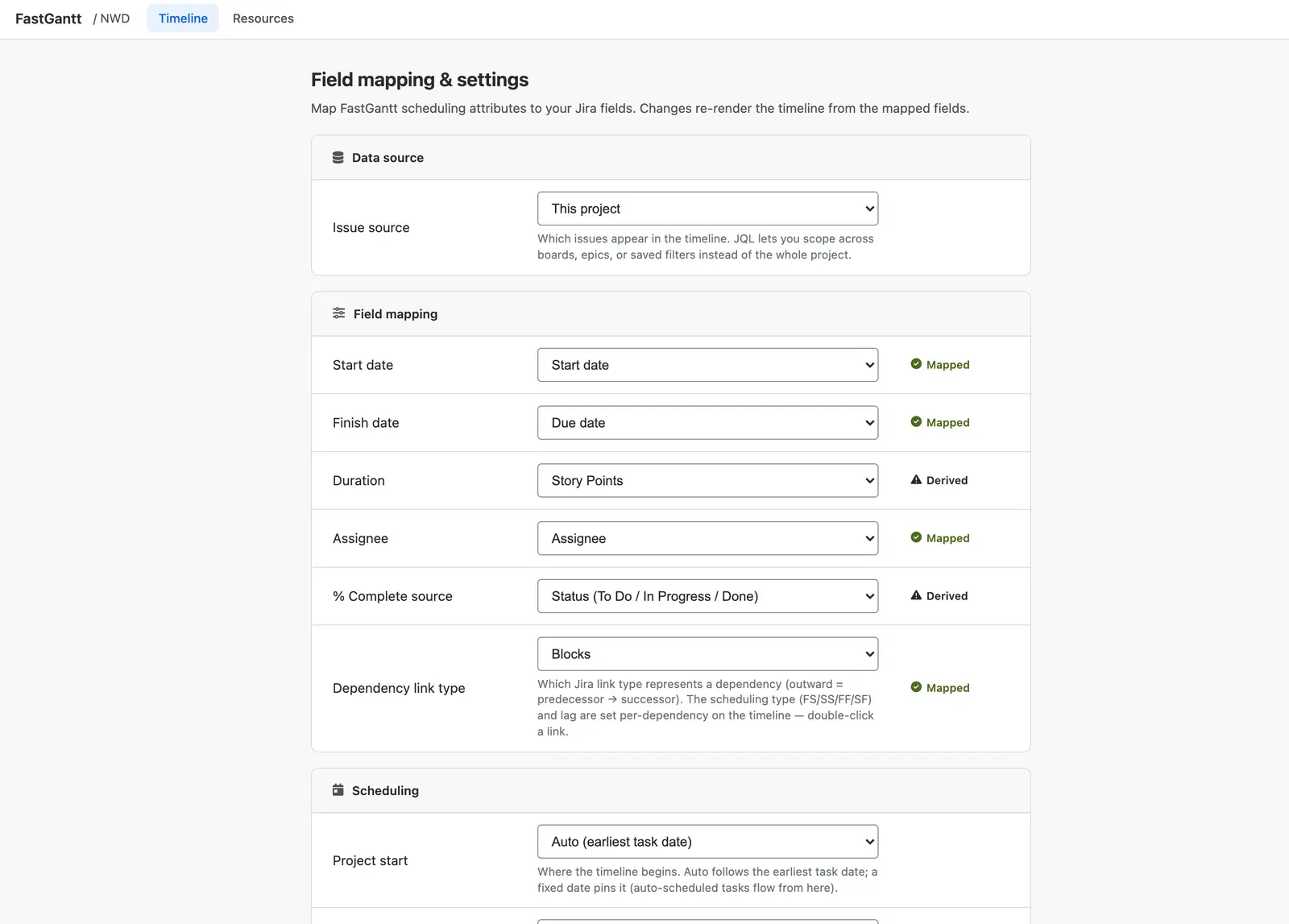
- Issue source — this project, or a JQL query if you want to scope across boards, epics or a saved filter.
- Start date and Finish date — any date field. Leave one unmapped and the engine schedules that end for you.
- Duration — an estimate field or a points field. This is what drives length when a task has no explicit dates.
- Assignee — normally Jira's own assignee; any user field works.
- % Complete source — status, time tracking, or a custom field. Only a custom field can be edited from the timeline; the other two are derived, and the app says so rather than accepting an edit it cannot save.
- Dependency link type — which Jira link type means "depends on". Blocks by default.
- Project start, duration unit and the working calendar (weekends and a holiday region) sit in the same screen.
A mapping is per project, and changing it re-renders the timeline immediately.
Reading the timeline
The left grid is your task tree; the right is the chart. Use Expand all / Collapse all to open the whole hierarchy, the zoom presets (Day → Year) or the slider to change scale, and the fit button to frame the whole plan.
- Summary rows (anything with children) are rolled up from their children. Their dates are computed, not stored, which is why they cannot be dragged.
- The Today line is the red vertical marker.
- Sprint bands and release markers appear in the header when the project has them — see below.
Changing the plan
Four ways to change a task, all of which write to Jira:
- Drag a bar to move it.
- Drag its right edge to change the duration.
- Edit a grid cell — start, finish, duration, assignee.
- Open the task drawer for all of its fields at once.
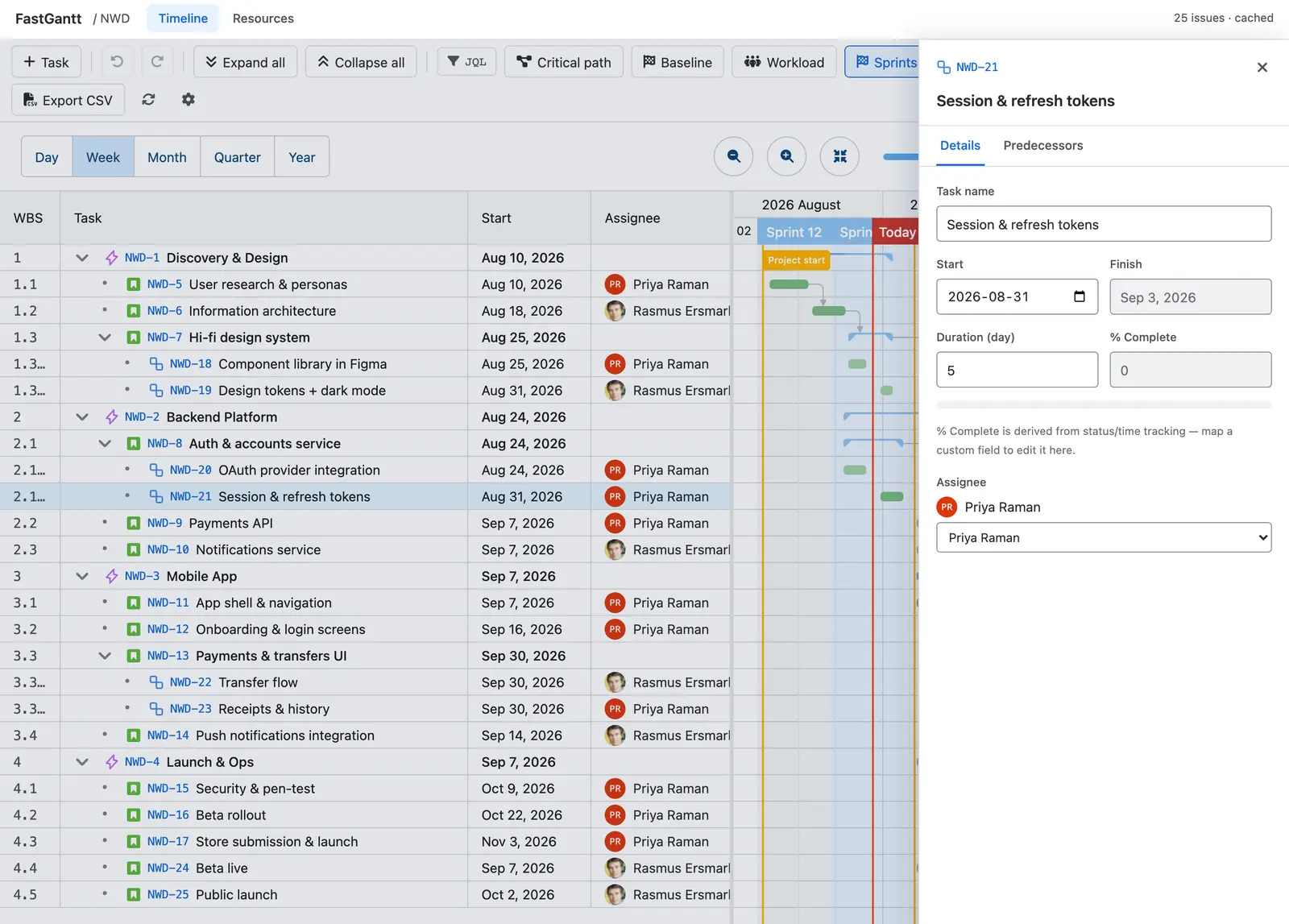
Changes are saved as you make them — there is no Save button, and no "publish" step. If Jira refuses a field (because it is not on that issue type's screen, for instance), FastGantt tells you which field, saves the rest, and puts the bar back where it was.
Dragging a row in the grid onto another task re-parents the issue in Jira, where Jira's hierarchy rules allow it — a task under an epic, a sub-task under a different parent. Re-ordering rows within the same parent is display-only: Jira has no field for sibling order.
Undo and redo
Because there is no Save button, there is a real undo. Ctrl/Cmd+Z — or the arrows in the toolbar — puts the previous values back in Jira, not just on screen. Redo re-applies them.
Undo covers scheduling changes: moves, resizes, field edits and the knock-on effects the engine calculated. It deliberately does not cover creating an issue or re-parenting one, because undoing those on screen would leave Jira holding the change.
Dependencies, type and lag
Drag from one bar's edge to another to create a dependency; FastGantt creates the Jira issue link. Click a line and press delete, or use the editor's delete button, to remove one — the issue link goes with it.
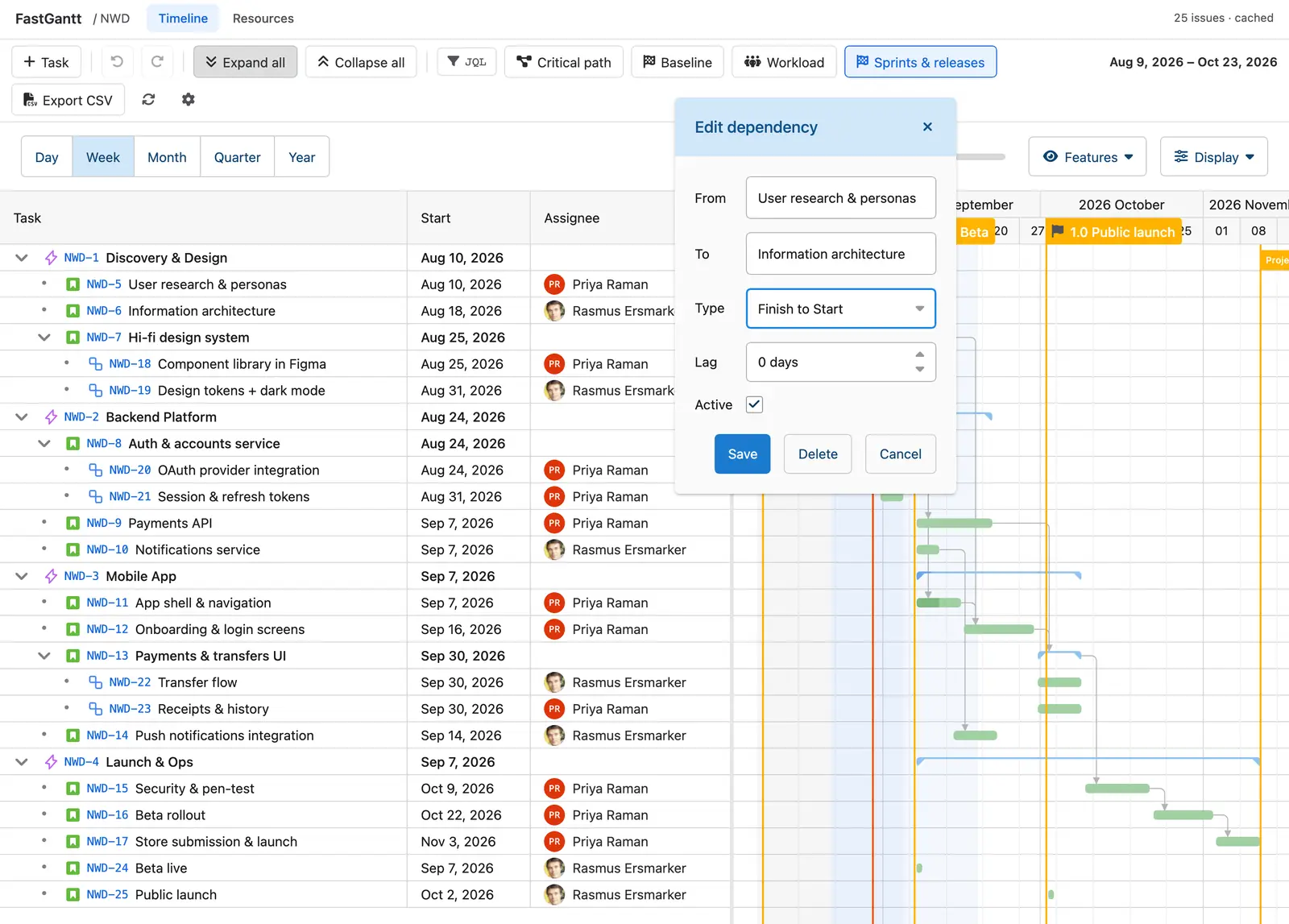
Double-click a line to edit its type — finish-to-start, start-to-start, finish-to-finish, start-to-finish — and its lag.
Worth knowing: Jira issue links have no concept of a scheduling type or lag. The link itself is a real Jira link and is visible everywhere in Jira; the type and lag are stored by FastGantt in your tenant, because there is nowhere in Jira to put them.
The critical path
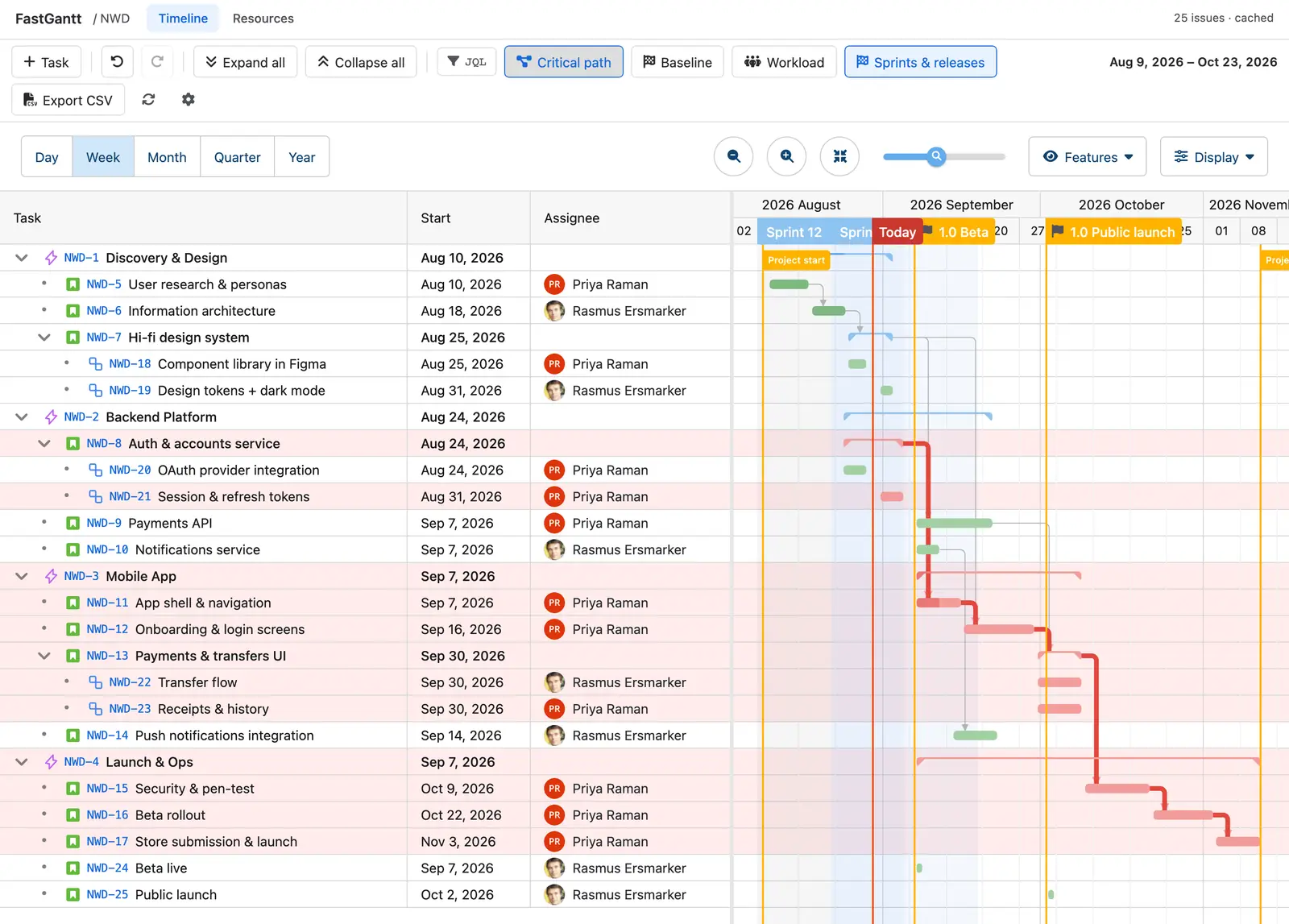
Critical path in the toolbar highlights the chain of tasks that decides the project's finish date — in the chart and in the grid rows, so it reads in the task list as well as on the bars.
Baselines and drift
A baseline is a snapshot of the plan at a moment you choose — the version you committed to. Open Baseline in the toolbar and capture one; the snapshot is stored in your tenant, with the date and the number of tasks.
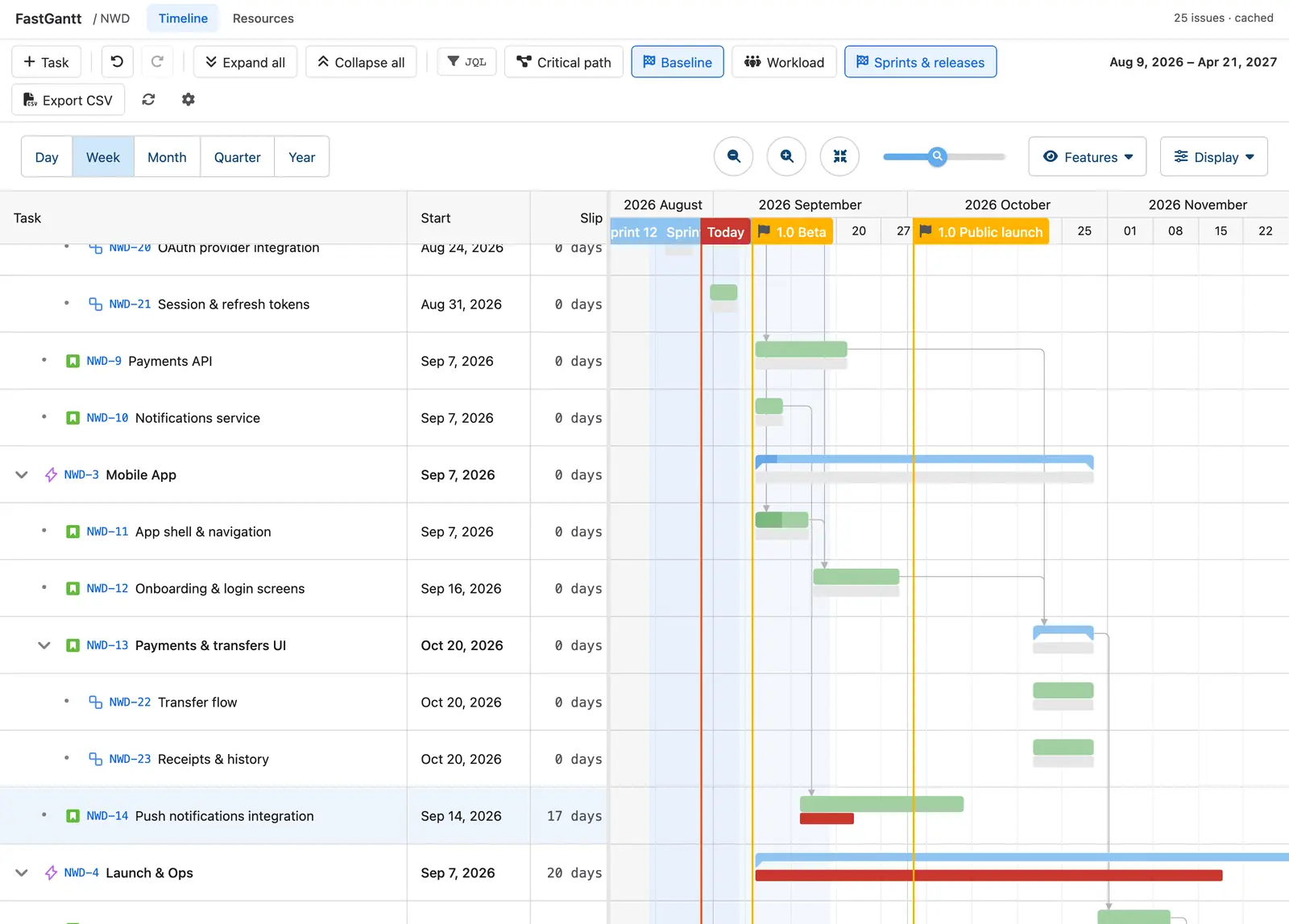
- Select a baseline to draw it under the current plan. Rows behind their baseline show red, ahead show green, on time stays neutral.
- Add the Slip column (Display → Columns) for the variance in days.
- Up to five baselines per project. The cap refuses rather than quietly dropping the oldest — a baseline records a commitment, so losing one silently would lose the thing you are comparing against.
Workload and capacity
Workload docks an allocation histogram under the timeline, sharing the same axis, so an overloaded week lines up with the work that caused it. Switch to Weekly for a per-person heatmap, or open the Resources screen for the full view.
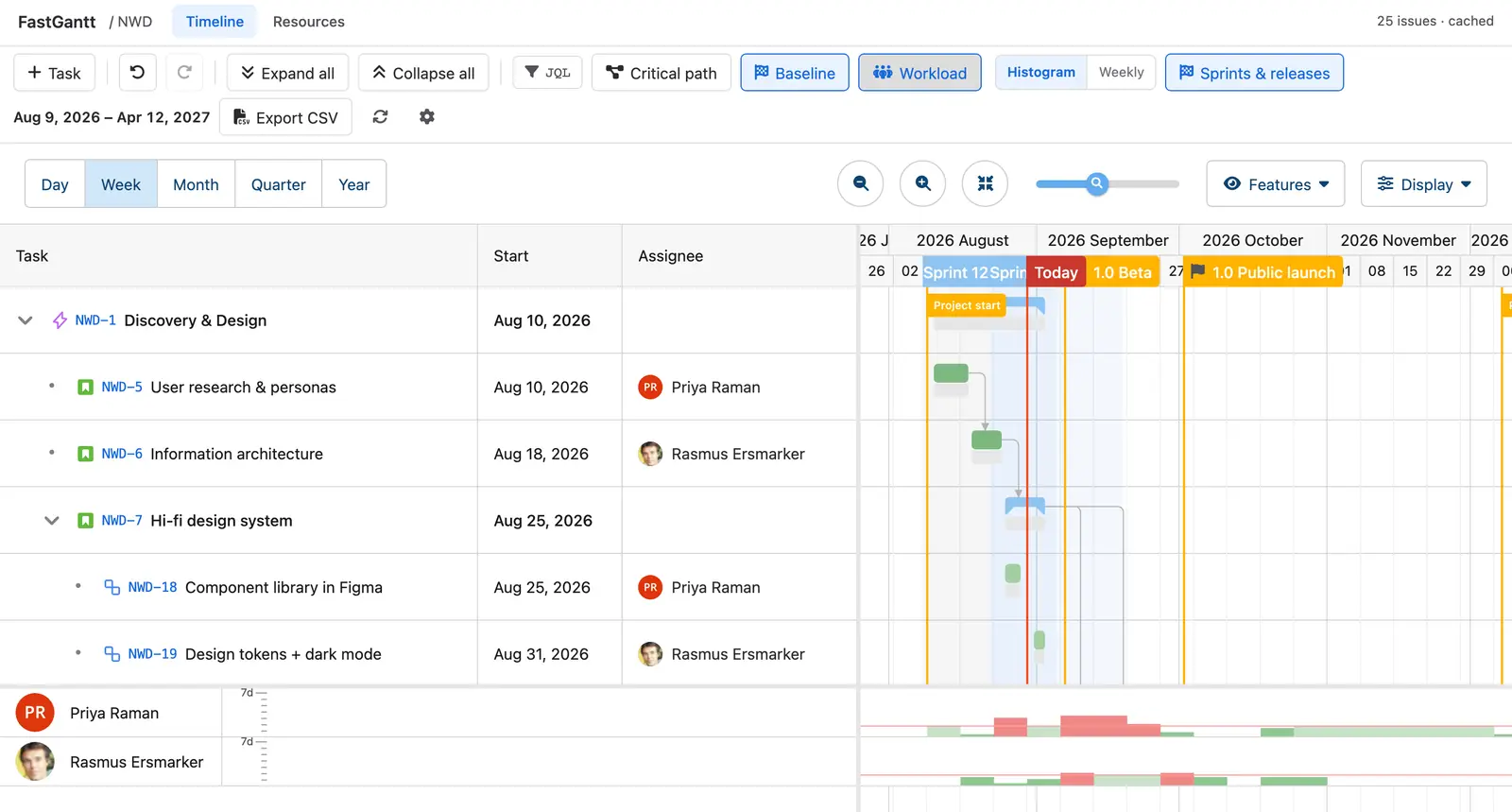
Load is computed from the scheduled dates, so tasks the engine placed from an estimate are counted too — not only those with explicit dates.
Sprints and releases
If the project has a scrum board, its sprints appear as bands in the timeline header; project versions with a release date appear as flag markers. Toggle both with Sprints & releases.
The button only appears when there is something to show. Sprint bands come from scrum boards — a team-managed board or a Kanban board has no sprints to draw.
Your view, and the project's
Some settings are yours alone, and follow you between machines: which columns you show, row size, the chart options in the Features and Display menus, and which baseline you have selected.
Others belong to the project and apply to everyone: the field mapping, the working calendar, the issue source, and read-only mode — which turns off every editing gesture for a project where the plan should be looked at but not changed.
Exporting
Export CSV writes the task list — as shown, with your columns — to a file, generated in your browser.
What FastGantt cannot see or do
Every app has edges. These are ours, so you find them here rather than after installing.
- Issue-level security inside a project is not re-applied per viewer. The cached plan is built once per project, so anyone who can open the project's FastGantt page sees the whole plan. Project permission is checked on every request; Jira issue security levels within a project are not. If you use issue security to hide issues from other members of the same project, take that into account.
- It cannot convert a task into a sub-task (or back). Jira's public API has no supported path for it — Jira's own Move action is not a public operation — so the app refuses clearly instead of half-doing it.
- It does not delete issues. The app holds no delete permission at all.
- Sibling row order is not saved. Jira has no field for it.
- % complete is read-only unless you map a custom field. Status-derived and time-tracking-derived progress cannot be set directly.
- A field Jira will not accept cannot be written. Whether a field can be edited is decided per project and per issue type by Jira's screens. When Jira refuses one, FastGantt names it and saves the rest.
Permissions & your data
FastGantt runs entirely on Atlassian Forge, inside your own tenant. It declares no egress: no data leaves Atlassian, and we hold no copy of anything and cannot read it.
- What is stored: a cache of the issues in the projects where the app is used (the fields you mapped), your project configuration, dependency type and lag, saved baselines, and each person's own view preferences.
- Personal data: Atlassian account IDs only. No names, no email addresses, no avatar URLs, no time zones — the names and faces on the timeline are read live from Jira, with your permissions, each time you open a plan. Because account IDs are stored, the app implements Atlassian's User Privacy APIs: it reports the accounts it holds and erases an account's data when Atlassian reports that account closed.
- Every action runs as you. The app can never change anything you could not change yourself. The one elevated path is the background sync that builds the per-project cache; access to it is gated on your own project permission and fails closed.
- Uninstalling deletes everything the app stored.
More detail: privacy policy · security policy.
Troubleshooting
The bars are all one day long, or there are no bars at all
Nothing is mapped to a start or finish date, and there is no duration field to schedule from. Open Settings and map at least one date field, or a duration field so the engine can place tasks itself.
I dragged a bar and it snapped back
Jira refused the write, and the app told you which field it refused. The usual cause is a field that is not on that issue type's edit screen — Story Points on a business project, for example. Map a different field, or add the field to the screen in Jira.
A summary row will not move
Summary rows are rolled up from their children. Move the children.
My sprint bands are missing
Sprint bands need a scrum board. A team-managed board or a Kanban board has no sprints for the app to read.
Someone else's change is not showing
The plan is served from a cache that follows Jira automatically, but a browser tab that is already open does not re-read it. Use the refresh button in the toolbar, or reopen the page.
Everything is read-only
Either the project is set to read-only in settings, or the subscription is inactive. In both cases the plan stays visible and the reason is shown in the header — a lapsed subscription never hides the plan you already have.